
KView
A terminal and data viewer for macOS and Linux, built for working with scientific data: a real shell with suggestions as you type, NetCDF/HDF5 maps in seconds, notebooks, a system monitor and more – in one app.
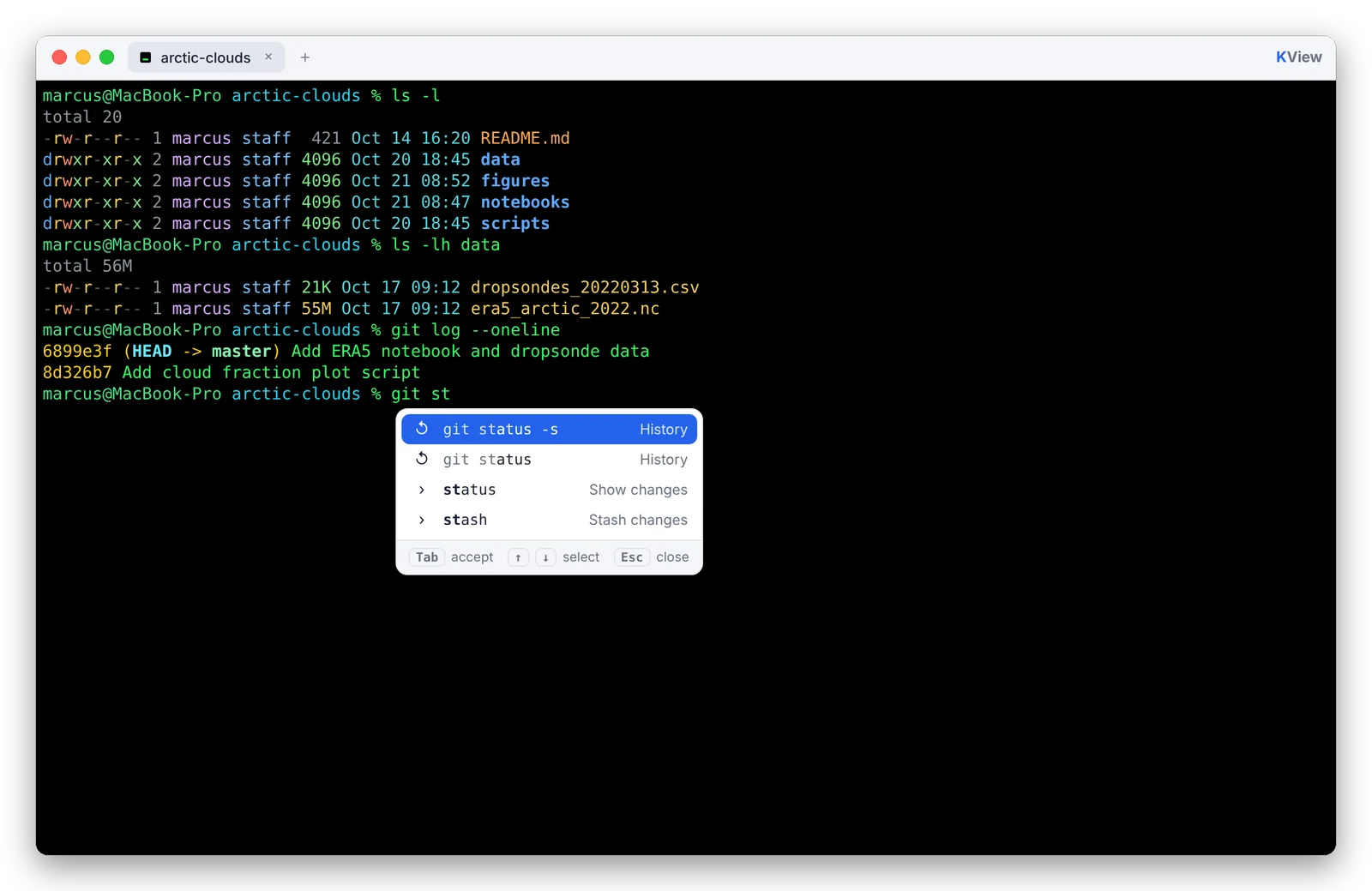
- zsh & bash with suggestions
- macOS & Linux
- NetCDF-3/4 & HDF5
- GRIB, CSV, soundings
- Jupyter notebooks
- PDF editor
- System monitor
- Timers & world clock
- AI commands
A real shell that helps you along
Your own ~/.zshrc (or ~/.bashrc on Linux) with conda, aliases and prompt is loaded as usual. On top of that KView suggests
commands, subcommands (git status), options (ls -l), files and your previous commands while you type.
- Tab accepts a suggestion, ↑↓ selects
- Output gets colors: permissions, sizes, dates, paths, errors
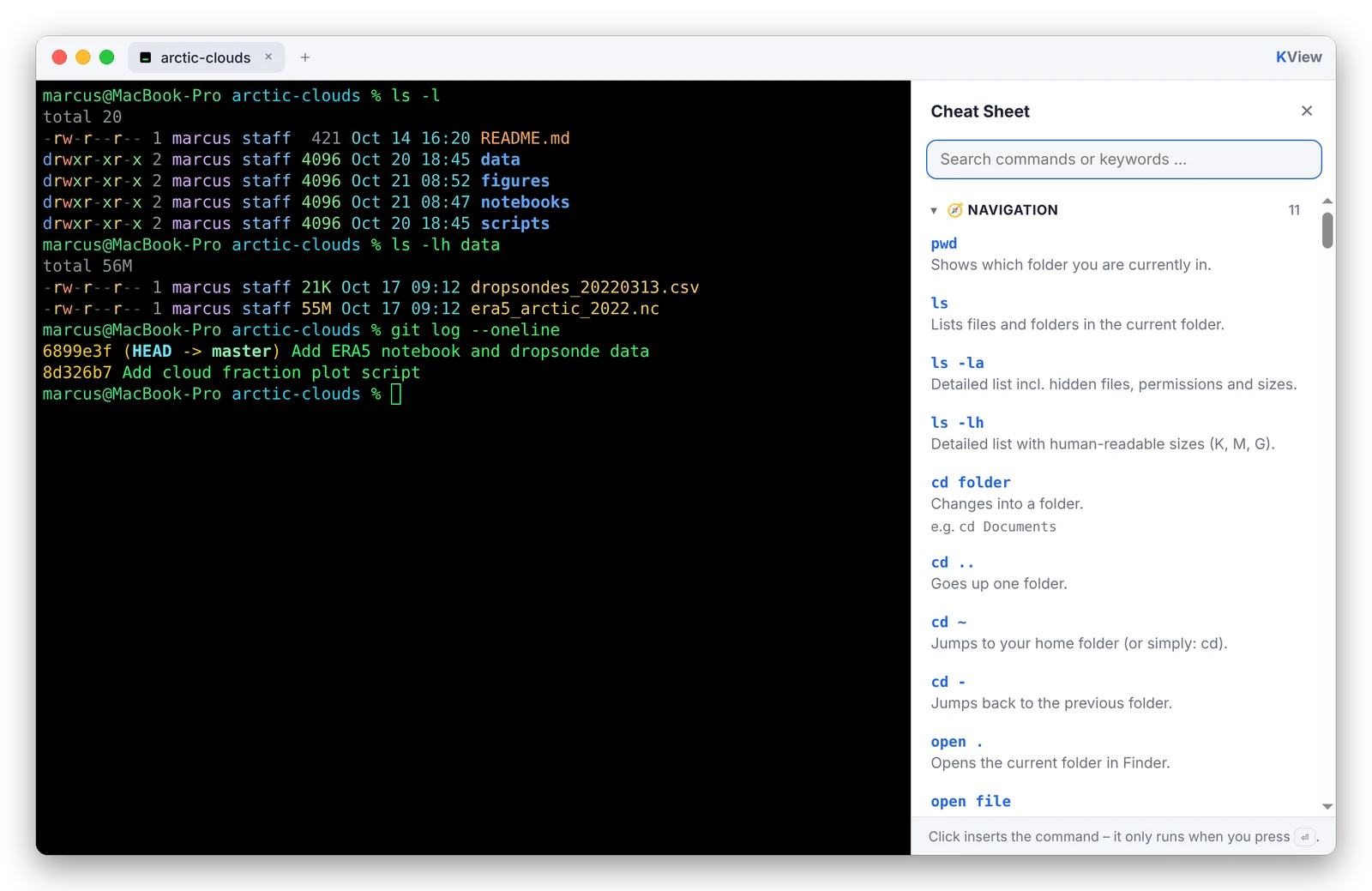
- Click a path to reveal it in Finder, ⌘-click opens it
- Drag files into the window to insert their path
- Edit the command line with the mouse, with undo/redo
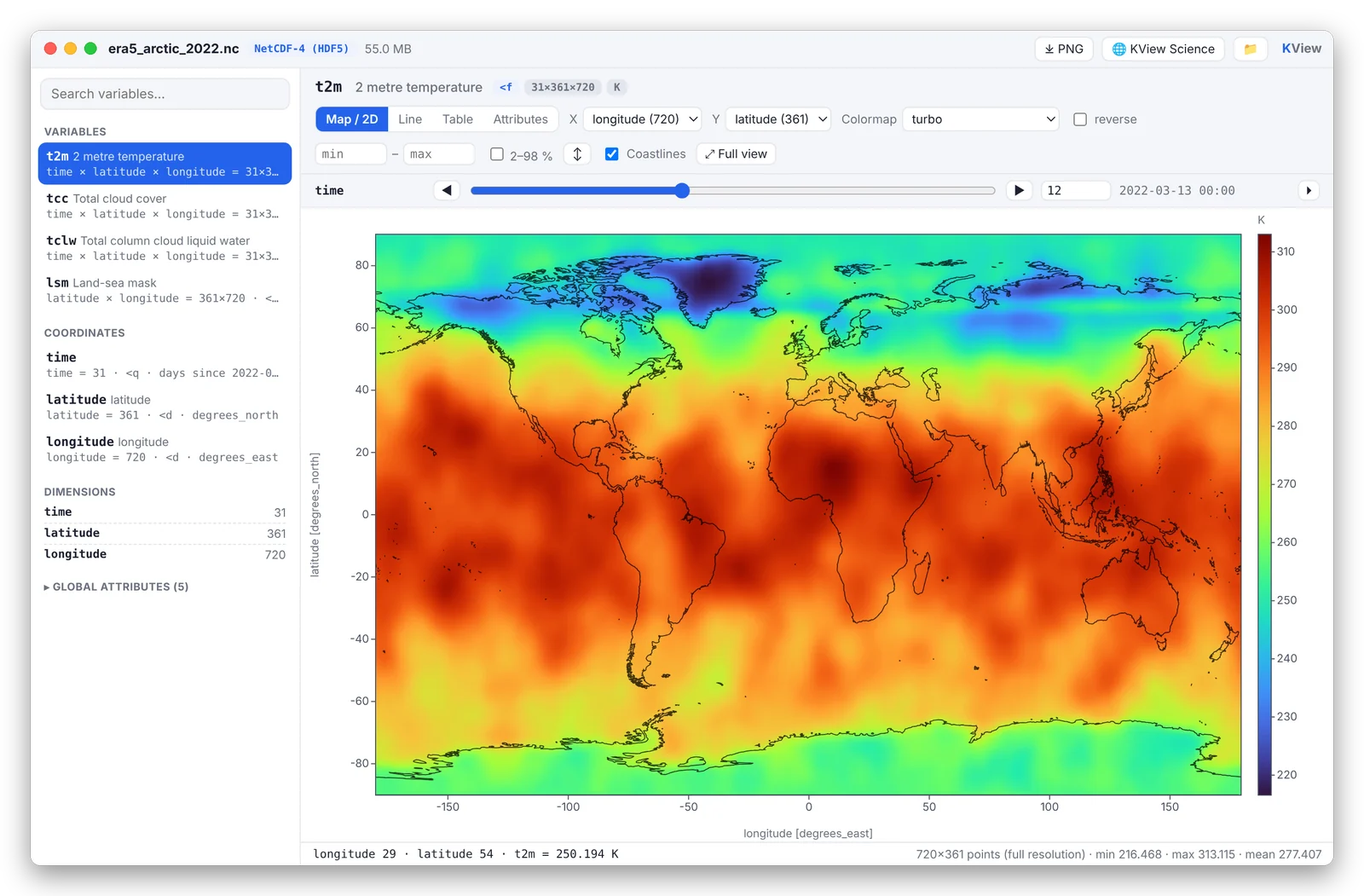
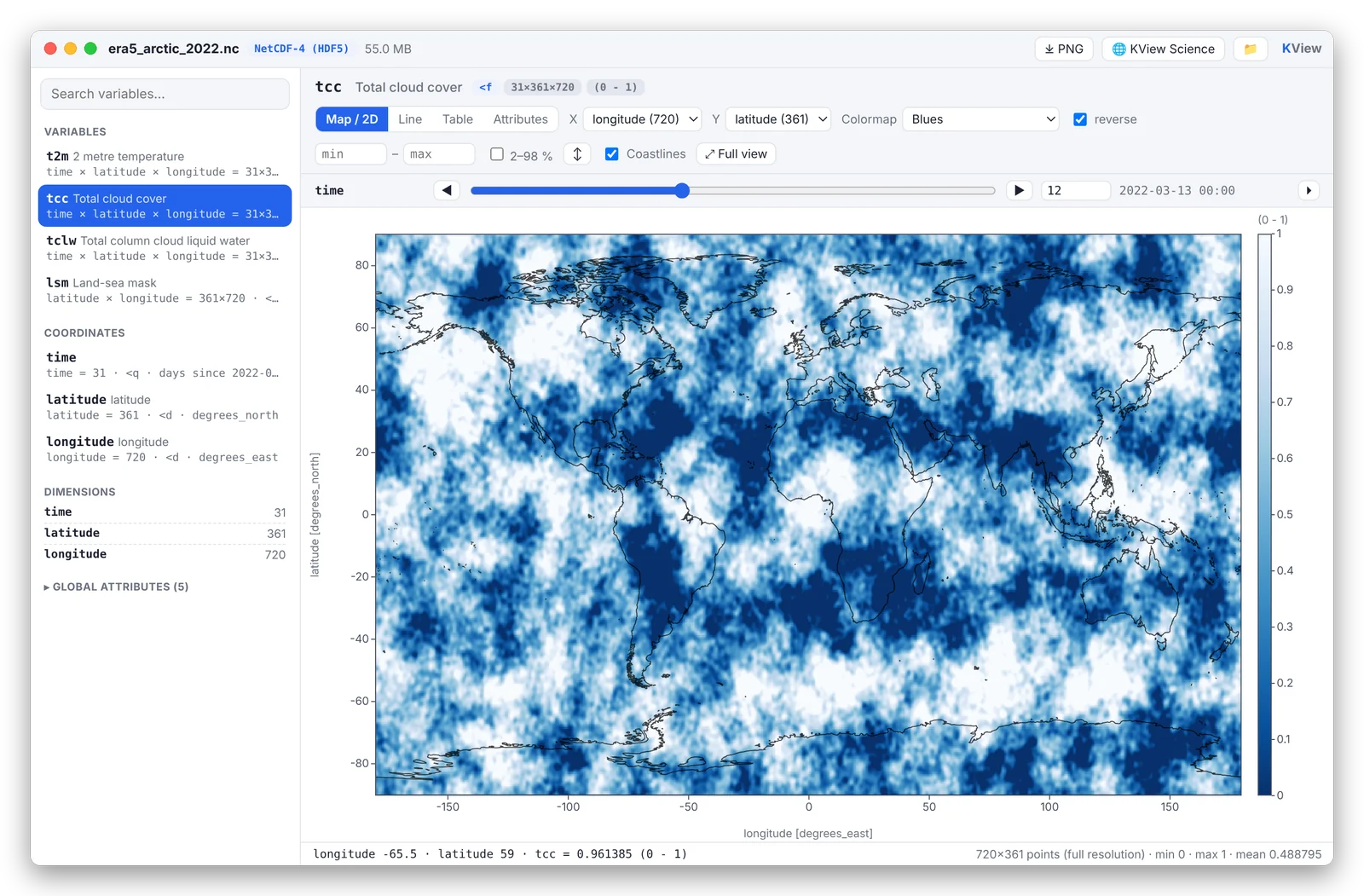
See what is in a NetCDF file – instantly
Type kview file.nc and the file opens in a native viewer. NetCDF-3, NetCDF-4 and HDF5 work even when
they are very large, because only what is visible gets read.
- Maps with coastlines, color scales and values under the cursor
- Drag a rectangle to zoom in at full resolution
- Sliders for time and height, with play button
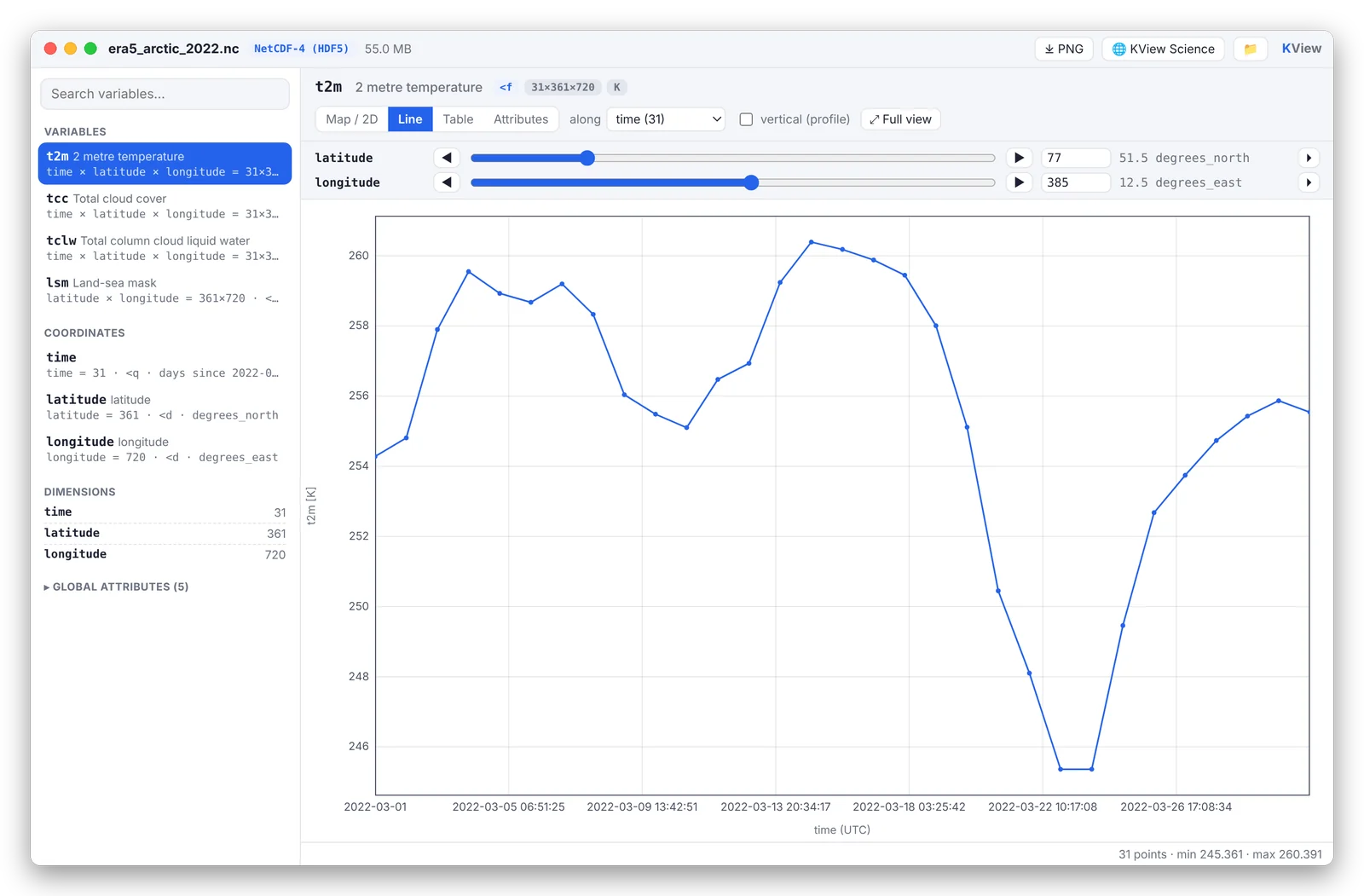
- Time series, vertical profiles, tables and attributes
- Save the current view as PNG (⌘S)
Many more formats
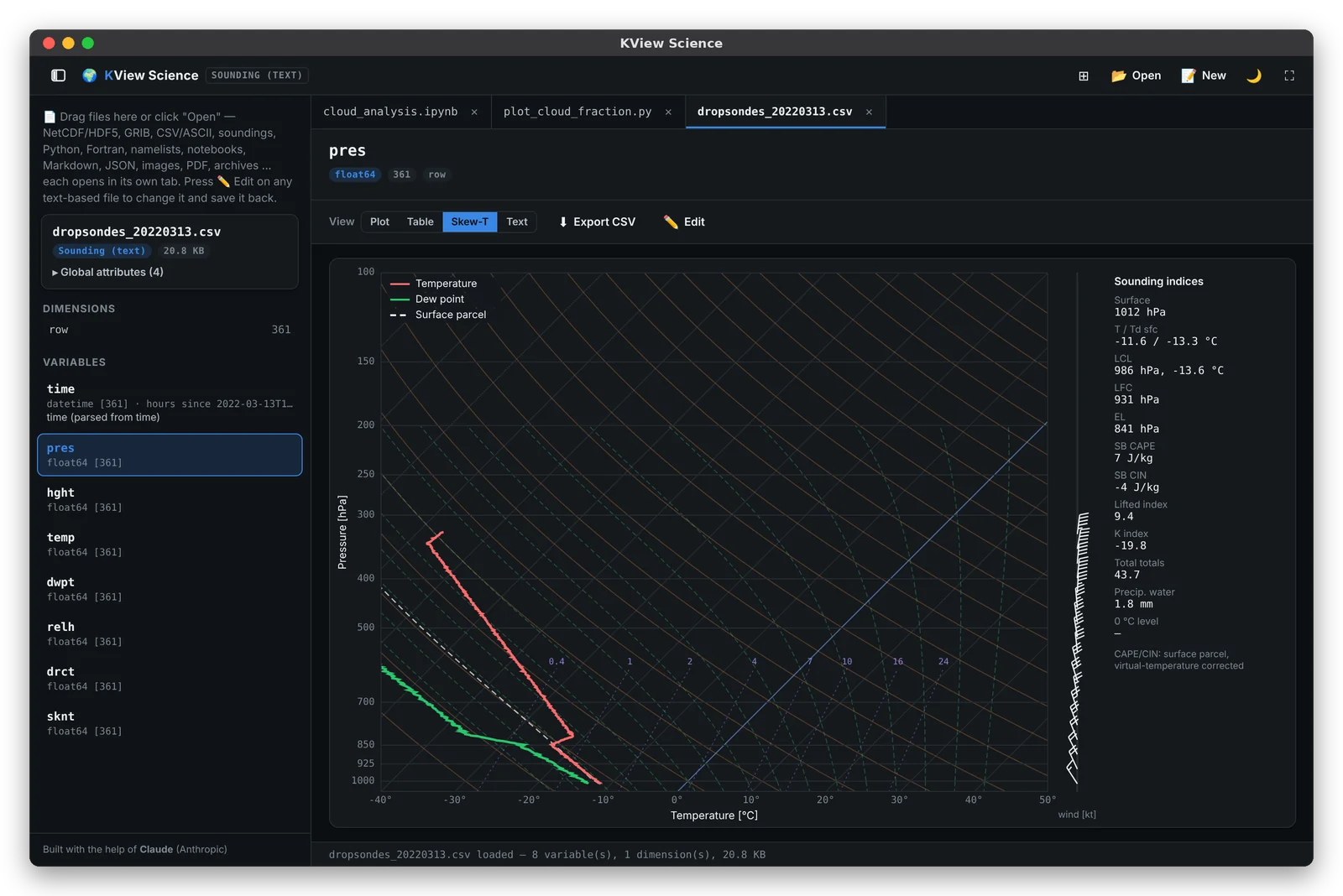
GRIB, CSV and text tables, radiosonde and dropsonde soundings, Fortran namelists, JSON, images, archives, Markdown and PDF open in KView Science – in Finder too, via Open With → KView.
- Soundings as Skew-T diagram with indices (LCL, CAPE, precipitable water …)
- Markdown rendered or as source, editable
- PDF Studio: fill in forms, add text, highlight, draw, sign, remove pages
- Several files side by side in tiles
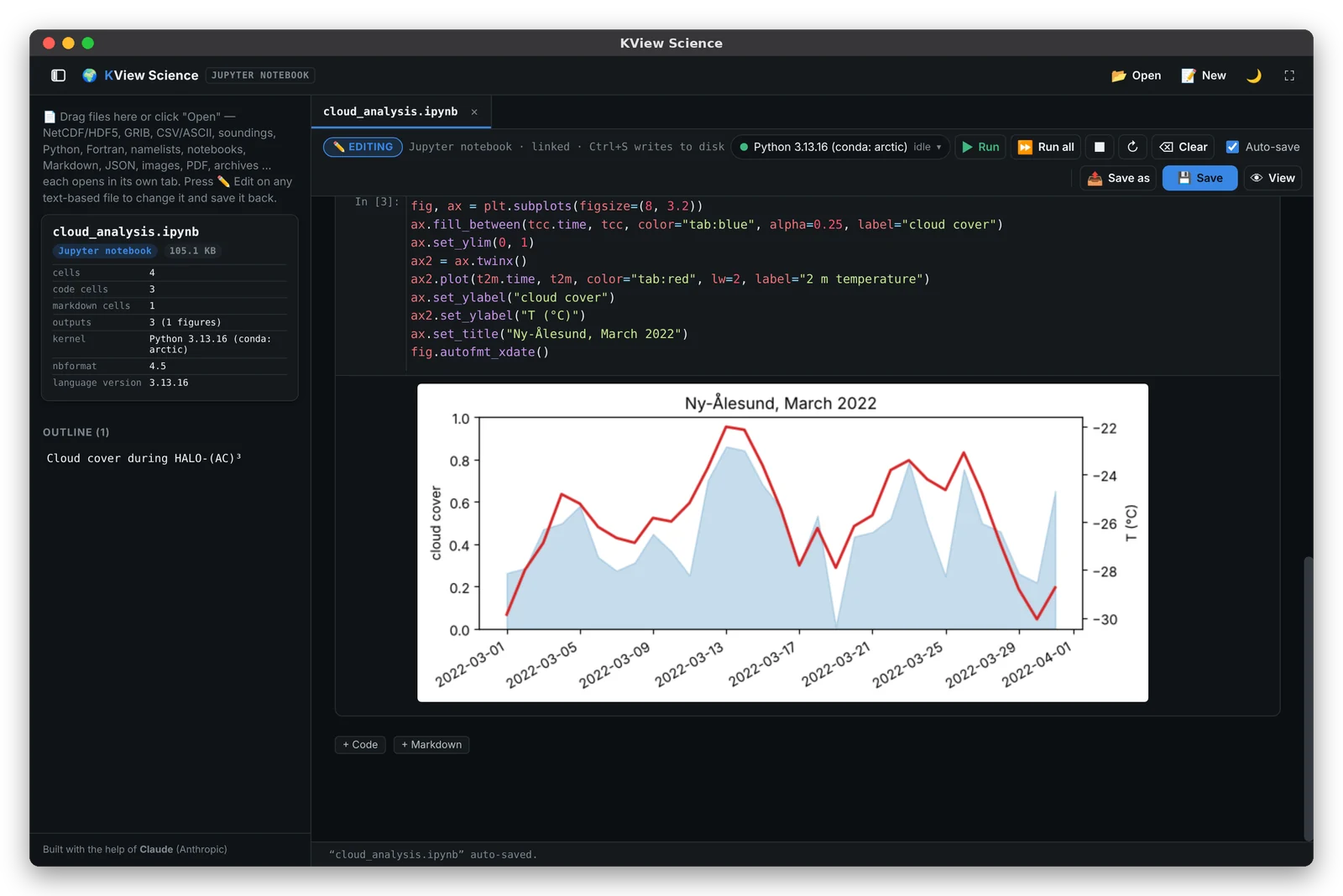
Run scripts and notebooks
Press ▶ Run on a .py or .ipynb file and it opens in an editor with a kernel bar,
similar to VS Code. KView finds your conda environments, venvs, pyenv and Homebrew Pythons.
- Shift+Enter runs a cell, Run all the whole notebook
- Text, tables, matplotlib plots and errors are saved in the notebook
- Suggestions know numpy, pandas, xarray, matplotlib, scipy, cartopy, metpy …
- Code only runs when you press Run
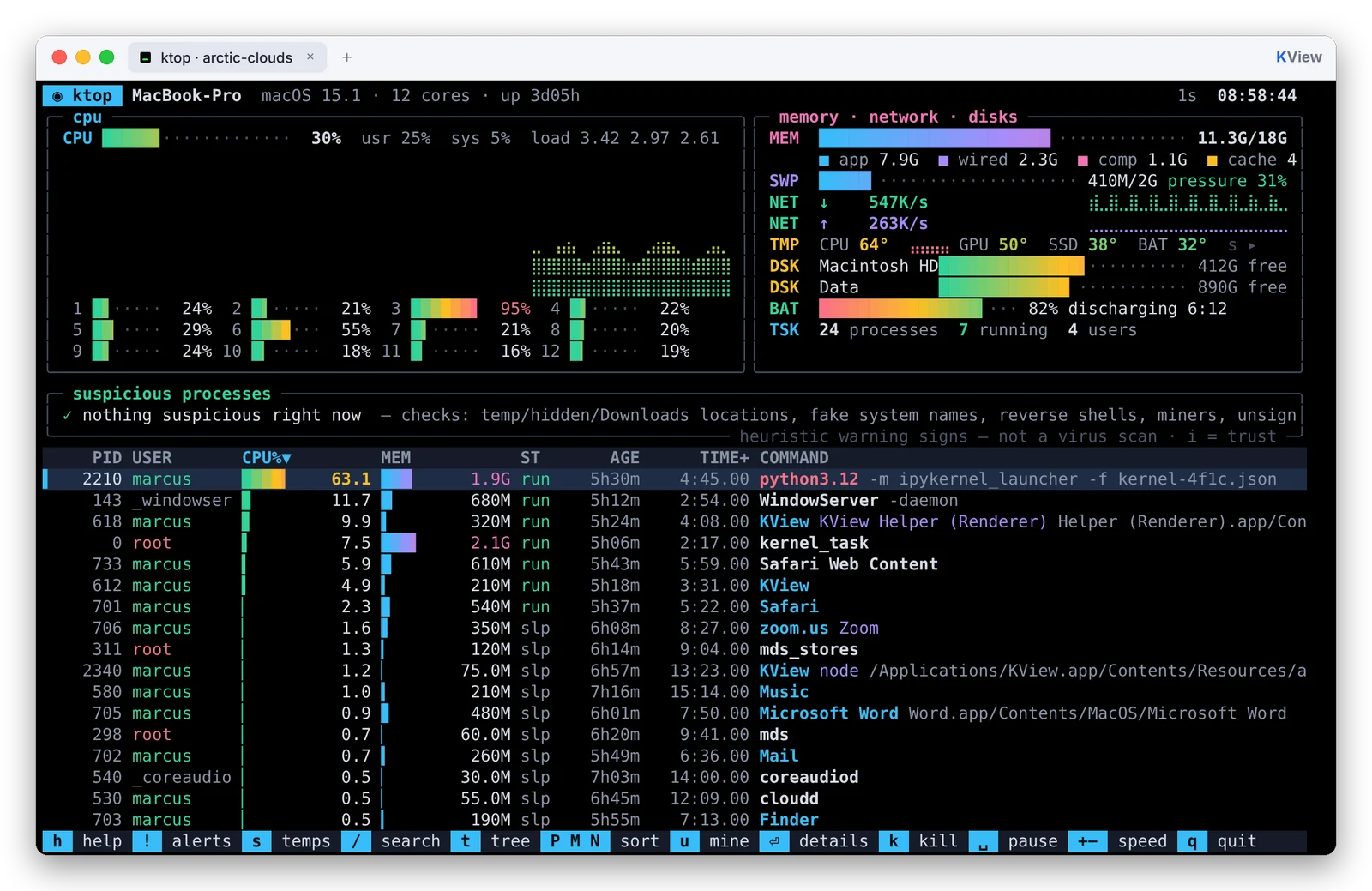
System monitor in the terminal
Type ktop – like htop, with gradient meters and graphs: every CPU core, memory, network,
disks, battery, temperatures and all processes.
- Sort, search, tree view, send signals – keyboard or mouse
- Points out processes with typical warning signs of malware (running from hidden folders, fake system names, reverse shells, miners …)
ktop --guiopens the same data as a dashboard window
Clock, timers and world time
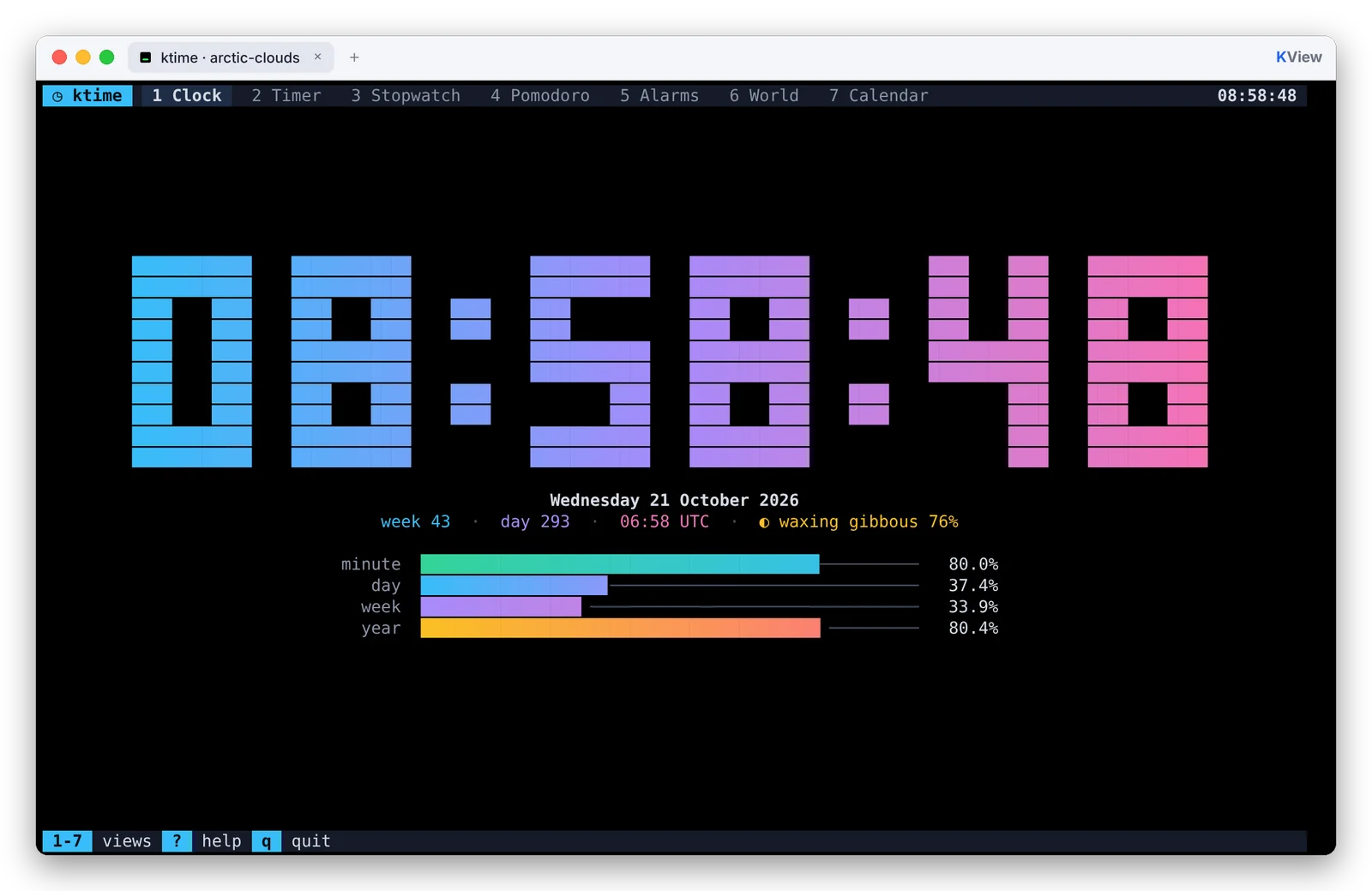
ktime shows a big clock with week, day of year and moon phase, plus timers, stopwatch with laps,
Pomodoro, alarms, a world clock and a calendar.
% ktime 25m Pizza      # timer with a name
% ktime alarm 7:30     # alarm
% ktime world          # world clock
Timers still ring as a macOS notification when ktime is closed.
Everything side by side
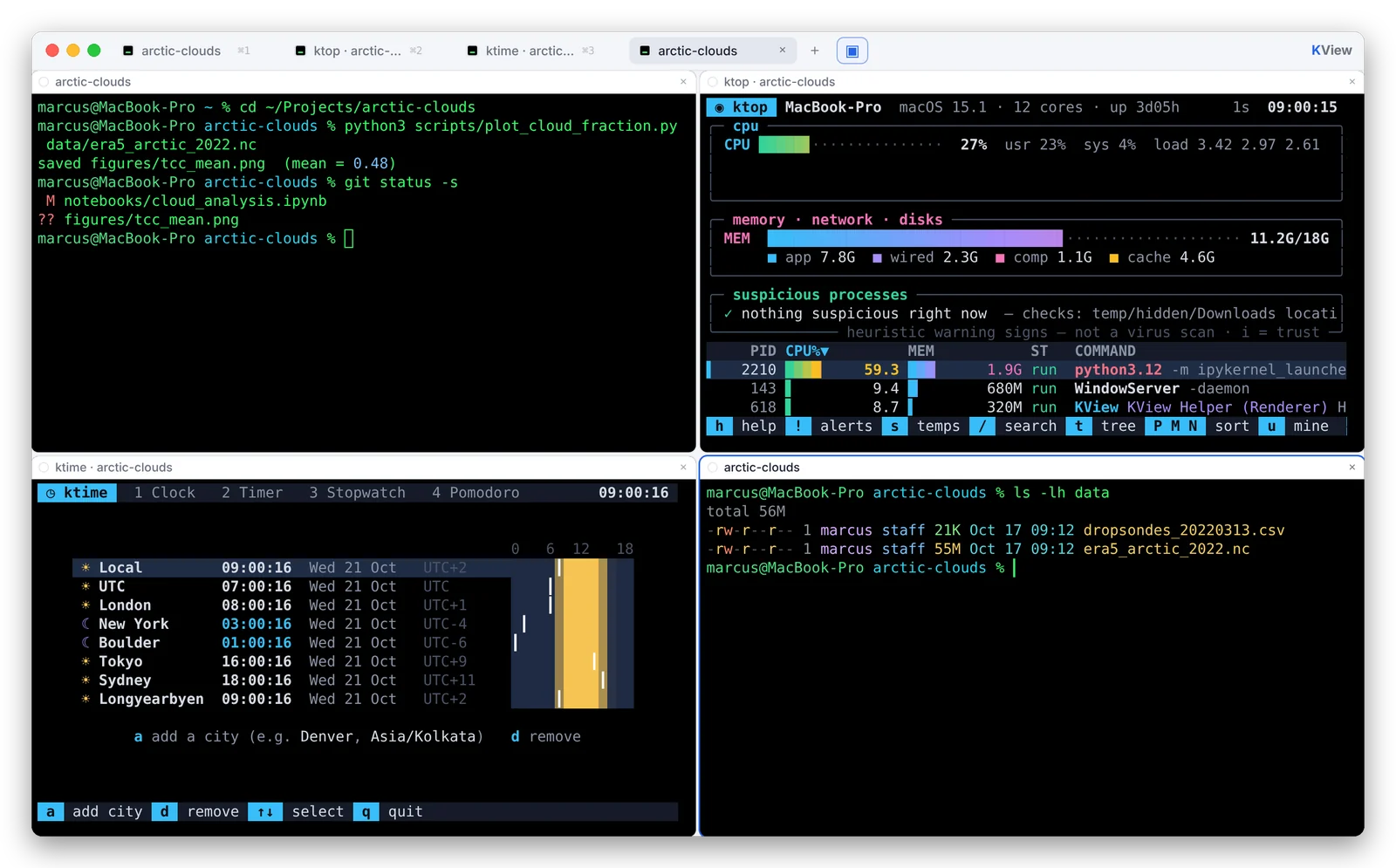
Tabs can be named, colored and tiled (⌘⇧D). Drag a tab out of the window to open it in a new one. Choose one of ten color schemes or your own colors – for all tabs or just one.
AI commands
Type ai show the 10 largest files here. The command lands on your command line with a short
explanation – it only runs when you press ⏎. Works with Claude, Gemini, DeepSeek, OpenAI or a local Ollama model.
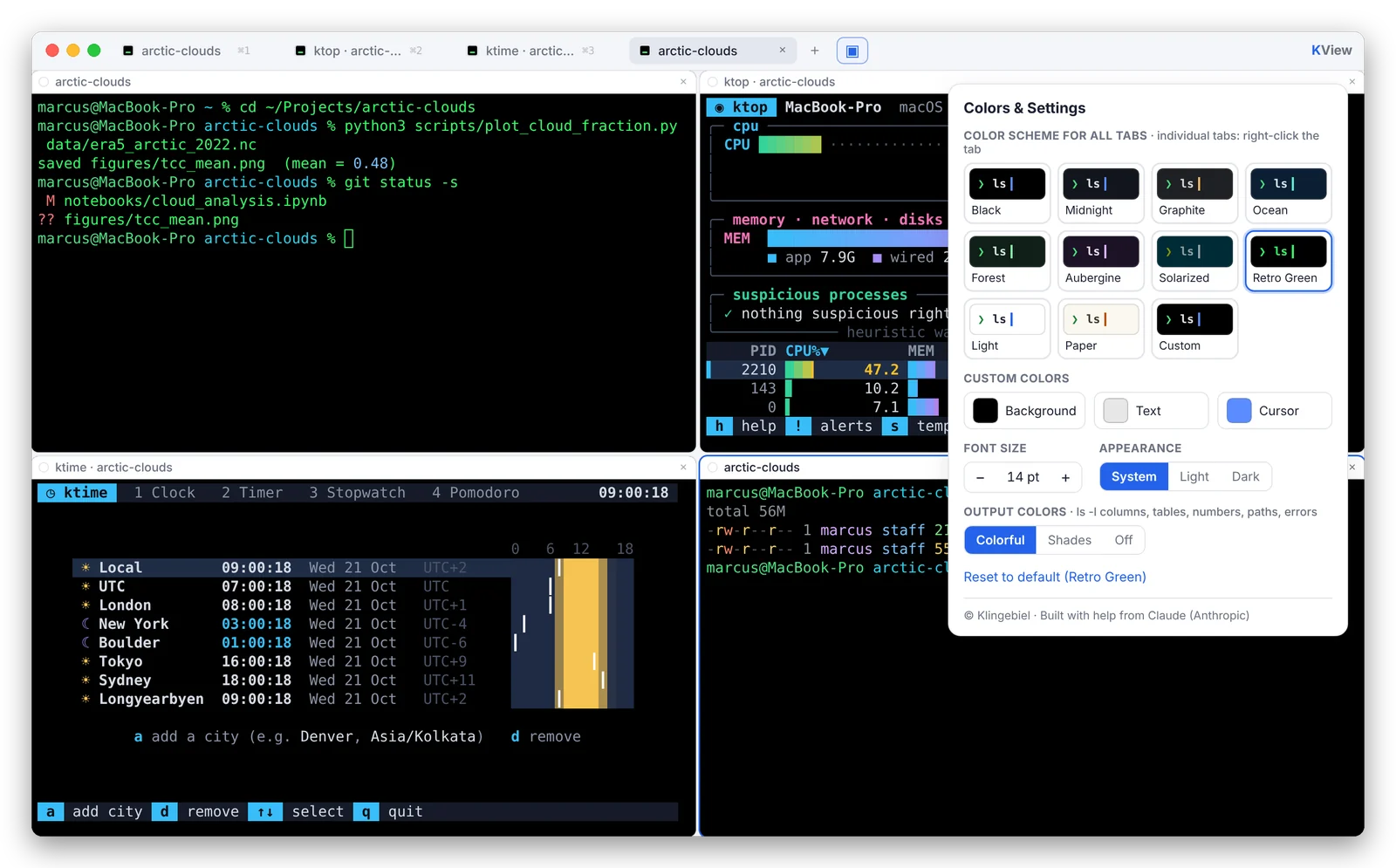
Colors & settings
Color schemes, font size, light/dark appearance and three styles for output colors. See the settings →
Markdown notes
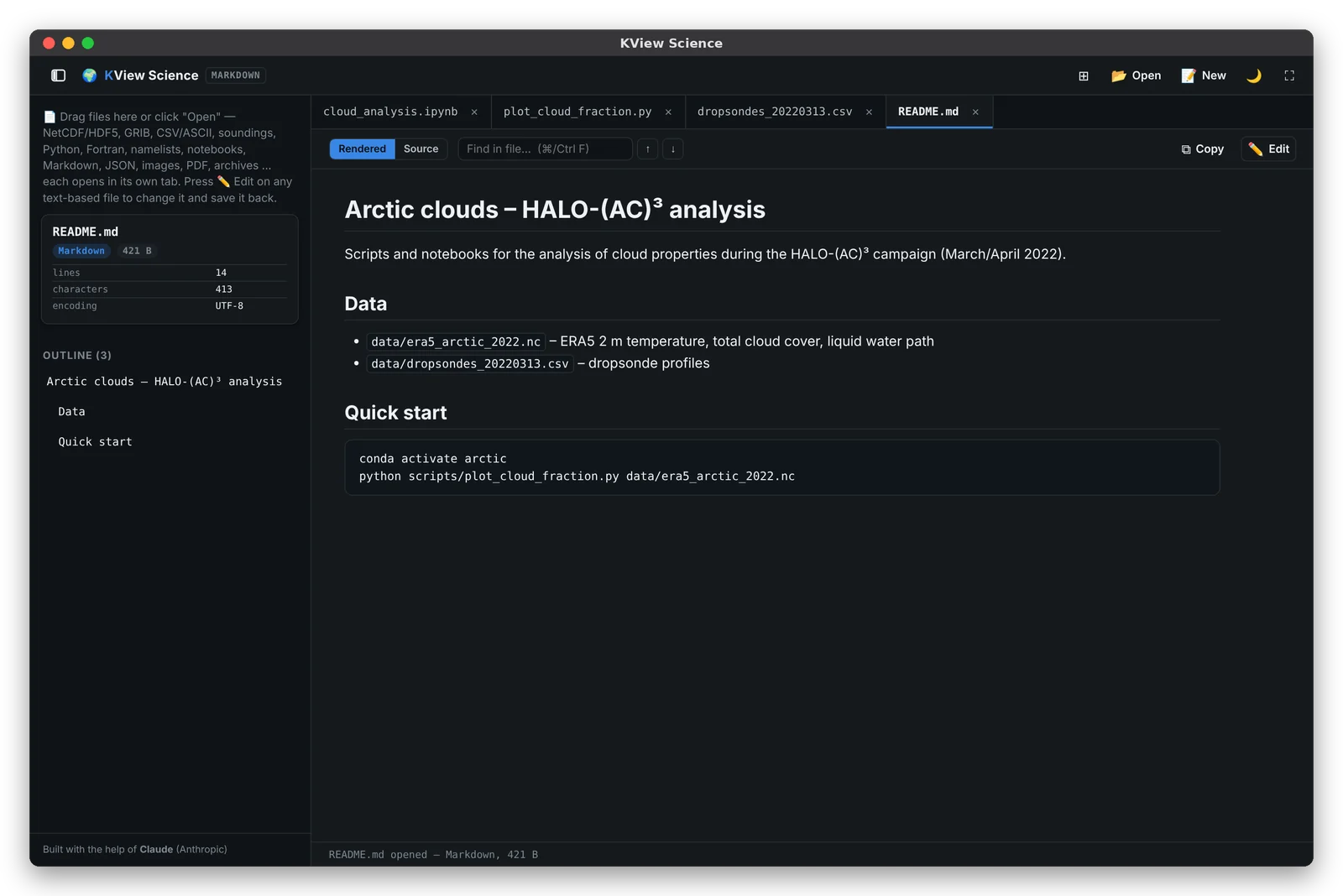
kview notes.md shows the file rendered; ⌘E edits it, ⌘S saves straight back to the file.
Example →
Your files stay yours
Everything runs locally on your computer. Only the optional AI commands send a request to the AI service you choose.
Download & installation
macOS
- SystemmacOS 12 Monterey or newer
- ProcessorApple Silicon (M1 or newer)
- Double-click KView.zip and drag KView.app into your Applications folder.
- Open KView. Because the app is not from the App Store, macOS asks for confirmation the first time:
- macOS 15 Sequoia and newer: try to open the app once, then go to System Settings → Privacy & Security and click Open Anyway.
- macOS 12–14: right-click the app → Open → Open.
To open any file in KView from the Finder: right-click → Open With → KView.
Linux
- System64-bit (x86_64) with glibc 2.34+: Ubuntu 22.04+, Debian 12+, Mint 21+, Fedora 35+ …
- Shellbash or zsh
Ubuntu, Debian, Mint, Pop!_OS:
$ sudo apt install ./kview_1.0.0_amd64.deb
Any other distribution (no admin rights needed):
$ tar -xzf KView-1.0.0-linux-x64.tar.gz
$ cd KView-1.0.0-linux-x64
$ ./install.sh   # all users: --system
Then start KView from your app menu or type kview in any terminal –
kview data.nc opens a file directly. Uninstall with sudo apt remove kview
or ./install.sh --uninstall.
Shortcuts on Linux use Ctrl+Shift instead of ⌘, like other Linux terminals, so Ctrl+C, Ctrl+W … keep working in the shell: Ctrl⇧T new tab · Ctrl⇧C/Ctrl⇧V copy/paste · Ctrl⇧B cheat sheet · Alt+1…9 switch tabs · Ctrl-click opens a path.
Optional for both: a Python environment with ipykernel to run notebooks and scripts.
KView is free software under the MIT license, made by Marcus Klingebiel with help from Claude (Anthropic). It comes without warranty. The screenshots show demo data. Questions or ideas? Write to me – see Contact.